College of
LIBERAL ARTS AND
SCIENCES
DISCOVER YOUR PASSION

The College of Liberal Arts and Sciences has been the intellectual heart of Villanova since the University’s founding in 1842. With more than 40 academic departments and programs offering undergraduate and graduate degrees as well as doctoral programs in Philosophy and Theology, CLAS provides a rich, rigorous and diverse educational experience.
Faculty in the College are teacher-scholars. They are thought leaders in their fields, pursuing research at the forefront of knowledge creation, and are equally committed to excellence in teaching—integrating their research into the classroom and inviting students to partner with them on studies and publications.
The College’s multidisciplinary curriculum encourages creativity and innovation. Students develop critical thinking and strong communication skills, preparing them to be ethical leaders with a passion for making a positive impact on the world.
EXPLORE OUR PROGRAMS
BACHELOR'S
MASTER'S
DOCTORAL
CERTIFICATE
MINOR
CURRICULUM



COLLEGE NEWS

Villanova Latin American Studies Professor Receives Fulbright U.S. Scholar Award
Raúl Diego Rivera Hernández, PhD, director of the Latin American Studies program and associate professor in the Department of Spanish, has been awarded a prestigious 2026-2027 Fulbright U.S. Scholar grant by the U.S. Department of State and the J. William Fulbright Foreign Scholarship Board.

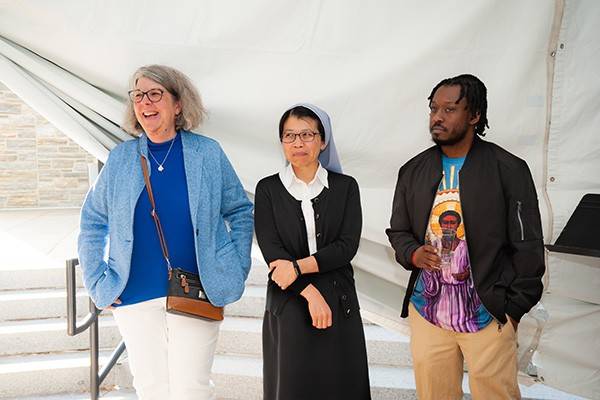
Pope Leo XIV Releases First Encyclical, “Magnifica Humanitas”
On May 25, 2026, Pope Leo XIV released his first papal encyclical, “Magnifica Humanitas: On Safeguarding the Human Person in the Time of Artificial Intelligence.” Faculty in the College of Liberal Arts and Sciences offer their observations and insight on this historic letter.

Villanova Political Science Professor Examines Civic Parties in Divided Societies in New Book
In places shaped by conflict, politics are often reduced to a simple story of stark polarization between two opposing sides. In her new book, Civic Parties in Divided Societies: Northern Ireland and Bosnia-Herzegovina, Cera Murtagh, PhD, explores how a different kind of politics is taking place in deeply divided countries.

Villanova University’s Faith Yost ’27 CLAS Named 2026 Goldwater Scholar
Faith Yost ’27 CLAS, a Biology major in Villanova University’s College of Liberal Arts and Sciences, has been named a 2026 Goldwater Scholar by the Barry Goldwater Scholarship and Excellence in Education Foundation.
AT A GLANCE
60+
GRADUATE STUDENTS PRESENT AT ACADEMIC CONFERENCES EACH YEAR
92%
OF THE CLASS OF 2025
SECURED OPPORTUNITIES
16
STUDENTS OR ALUMNI EARN FULBRIGHT SCHOLARSHIPS FOR 2025 – 2026
83%
OF STUDENTS FROM THE CLASS OF 2025 SEEKING A RESEARCH EXPERIENCE PARTICIPATED IN AT LEAST ONE
86%
OF STUDENTS FROM THE CLASS OF 2025 SEEKING AN INTERNSHIP PARTICIPATED IN AT LEAST ONE
88%
of students from the class of 2025 seeking a service experience participated in at least one