
M. Louise Fitzpatrick
College of Nursing
WHY VILLANOVA NURSING?

Villanova Nursing innovates and educates. We build nursing science that informs practice. We live and breathe Villanova University's Augustinian values in our approach to nursing as a profession, mission and healing ministry in a diverse society.
You will graduate ready to care, research, teach, advocate and discover. As you graduate you will enhance a powerful, compassionate alumni network whose members serve the vulnerable, think globally and lead.
We make personalized investments in you—whether you're new to nursing or more seasoned in your career. You will be challenged in an integrated way to be an independent thinker and problem solver, a nurse who contributes to the profession and promotes health for patients and populations. You will collaborate with faculty experts and have access to superior clinical and teaching resources in Driscoll Hall and around the globe. Because we are committed to creating unique and compelling opportunities for you to learn and advance, we are consistently honored by the National League for Nursing as a Center of Excellence in Nursing Education.
EXPLORE YOUR FUTURE
BACHELOR'S
MASTER'S
DOCTORAL
HEALTH CARE
PROFESSIONAL DEVELOPMENT
CENTERS
RESEARCH & INNOVATION




FAST FACTS
$90,510
AVERAGE UNDERGRADUATE STARTING SALARY
Class of 2025 survey results within six months of spring graduation
98.9%
SUCCESSFULLY SECURED OPPORTUNITIES
Class of 2025 survey results within six months of spring graduation
10,644
ALUMNI WORLDWIDE
6
CONSECUTIVE DESIGNATIONS AS
NLN CENTER OF EXCELLENCE
142
PhD GRADUATES SINCE 2008
6
GLOBAL HEALTH SITES
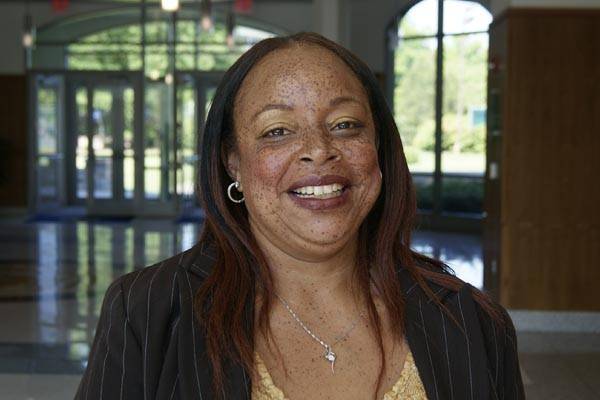
EDUCATORS. SCHOLARS. MENTORS.
NEWS

Deborah “Dee” Silvers Adams '86 FCN and Nick Adams Make $5 Million Leadership Gift to Support the Transformation of Villanova Nursing’s Simulation Lab
The M. Louise Fitzpatrick College of Nursing is proud to announce a $5 million leadership gift from Deborah “Dee” Silvers ’86 and Nick Adams to support the reimagination of its simulation lab. Simulation in nursing education is a vital, evidence-based teaching strategy, bridging the theory-practice gap with leading-edge virtual and immersive technologies.

New Toolkit Brings Disability-Inclusive Telehealth Training to Health Care Students Nationwide
As part of a simulation-enhanced interprofessional education (Sim-IPE) collaboration, the Fitzpatrick College of Nursing (FCN) at Villanova University has developed a comprehensive online toolkit designed to expand telehealth education for professionals who provide health care, in primary care settings, to individuals with disabilities and people experiencing health disparities related to social determinants of health (SDOH).

Mike ’67 CLAS and Terry Wilson ’67 FCN Mruz Advance Nursing Simulation with Transformational Challenge Gift
For today’s nursing students in the M. Louise Fitzpatrick College of Nursing (FCN), a critical piece of preparing them as leaders in the nursing field is through the use of dynamic teaching and learning strategies to ensure clinical simulation is infused throughout the curriculum.

Culinary Medicine: Cooking Up Better Health
Science and sustenance converged in Culinary Medicine 101, an immersive culinary and nutrition experience hosted by the MacDonald Center for Nutrition Education and Research with Vetri Community Partnership on May 30 in the Driscoll Hall Atrium on campus. The event brought together the art of cooking and the science of nutrition in an energetic, collaborative setting.